Redact a PDF so the text is really gone
Redacting a PDF looks simple: a black box over the text and done. Yet the text under that box often stays in the file. Verilak redacts and anonymises PDFs on your own workstation and truly removes the text under every redaction. Then it checks that nothing is left behind.
Why a black box is not enough
A PDF is made of layers. The text you see is stored as text in the file, with the fonts and often a search index. A black box you draw over it is an extra layer on top. Whoever opens the PDF can then often simply select, copy or find the text underneath with the search function.
Redacted text can also remain outside the page: in bookmarks, in comments, in the file properties or in an earlier version still inside the PDF. Removing text from a PDF is therefore more than making it unreadable on screen.
How such redaction mistakes happen and how to check a redacted PDF yourself in three minutes is explained on A black bar, but the text is still there.
How Verilak redacts a PDF
Proposals
Verilak searches the PDF for names, addresses, citizen service numbers, bank account numbers and other personal data and makes a proposal for each find.
Review
You check every proposal on the page itself and decide whether it is redacted. Anything Verilak does not find, you draw as a redaction yourself.
Truly removed
A redacted page becomes an image. Under the black box there is no text left, not in the fonts and not in the search index.
Check
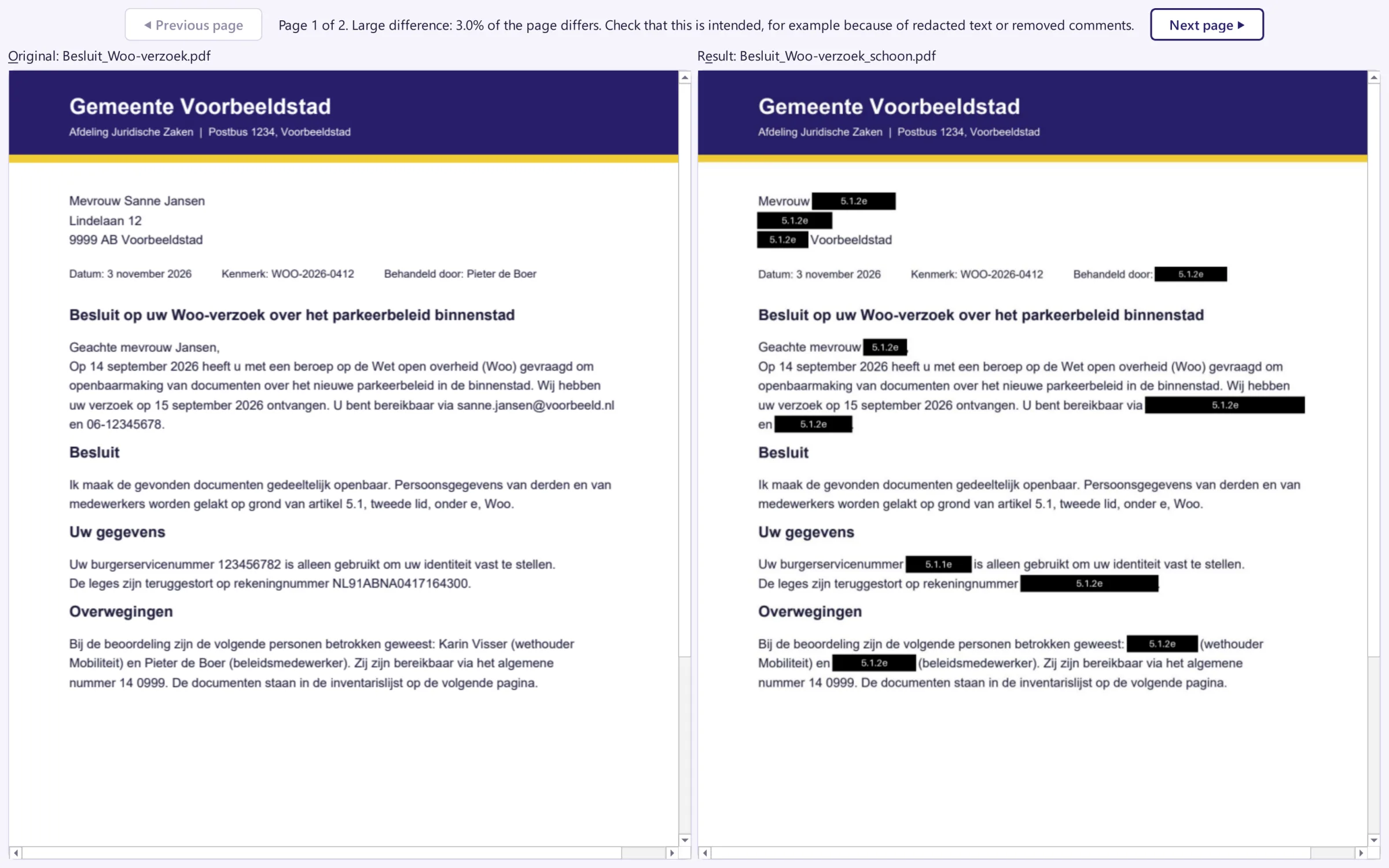
A separate check searches the whole result for the redacted text. You then see the original and the redacted PDF side by side.
Redacting in Adobe Acrobat or in Word
Adobe Acrobat Pro has its own redaction tool that does remove text, provided you apply the redactions and let it clean up the hidden data. Things often go wrong elsewhere:
- a black rectangle as a comment or drawing instead of a real redaction;
- text highlighted in black, so it looks unreadable but is still in the file;
- a black bar in Word, after which the document is saved as PDF: the text simply comes along;
- redactions that were marked but never applied.
Verilak works differently: it does not redact inside the PDF itself, but creates a new PDF in which the redacted pages only exist as images. The original stays untouched.
Scanned PDFs and other files
A scanned PDF contains no text, only an image of the page. Verilak then uses text recognition (OCR) to find personal data and blacks out the pixels in the image itself. Pages scanned at an angle or upside down are recognised too.
Besides PDFs, Verilak redacts Office files and images. From a PDF or Office file it makes a redacted PDF, which you can merge into one document with page numbers; a photo stays a photo, in its own format. After redaction Verilak makes the remaining text searchable again.
Verilak works fully offline. You do not have to upload your PDF anywhere and we never see your documents.
Try PDF redaction with your own documents?
In a six week pilot you redact real case files on your own workstations. More about redaction for the Dutch Open Government Act on Redaction software for Woo requests.