Screenshots: what Verilak looks like
Verilak is a Windows program that runs on your own workstation, without internet and without an account. This page shows the main screens: from the start screen to checking a redacted Woo decision. Click an image for a larger version.
Two tasks, one program
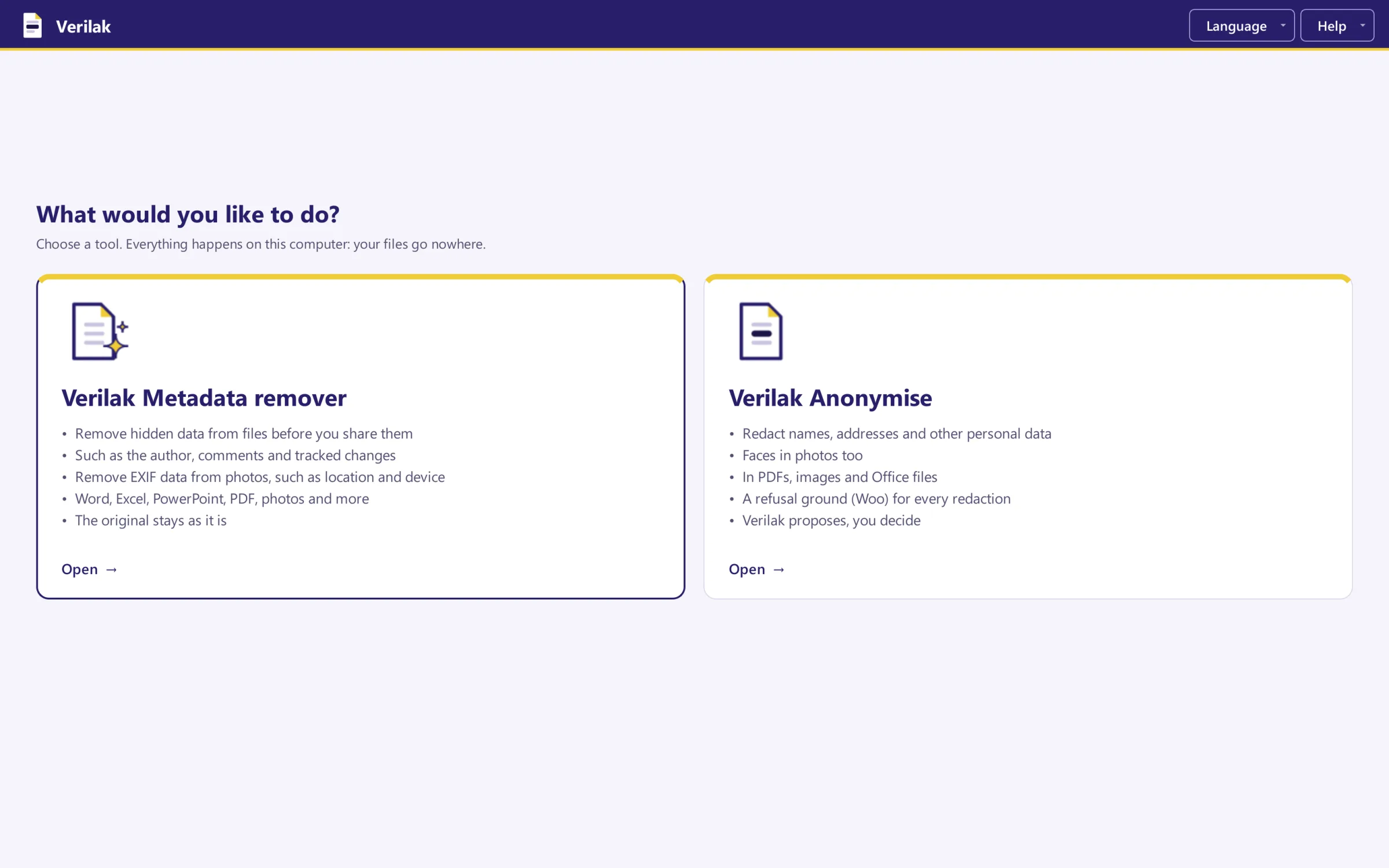
When you open Verilak, you choose what to do. The Metadata remover takes hidden data out of files before you share them. Anonymise redacts personal data in text and images. Both run entirely on the computer itself: your documents go nowhere.
Remove metadata in four steps
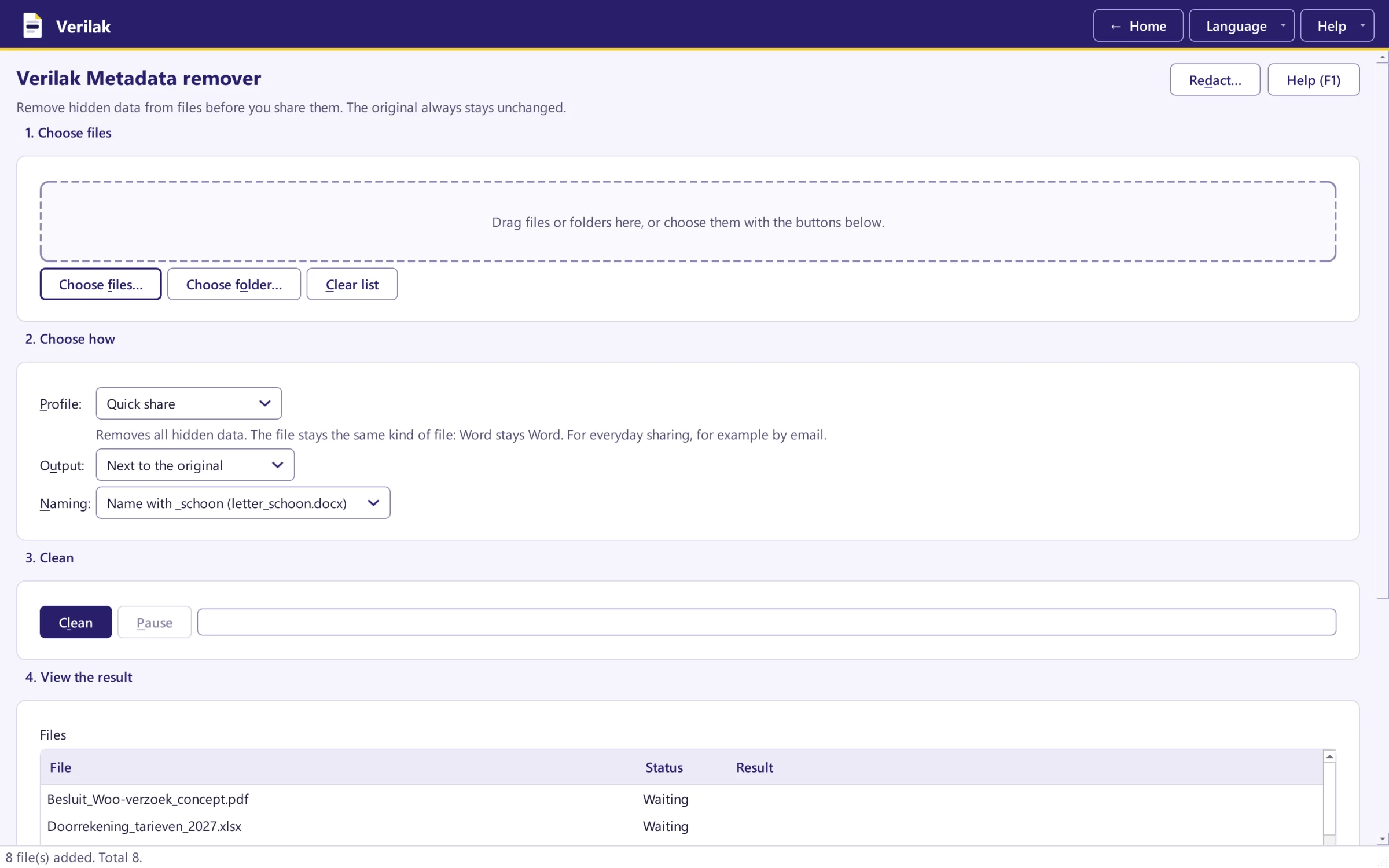
Drop single files or a whole folder into the window. Then choose a profile, for example Quick share to keep the file in the same format, or Publication for a clean, accessible PDF. The original always stays: Verilak makes a new copy. More about removing metadata.
See exactly what was removed
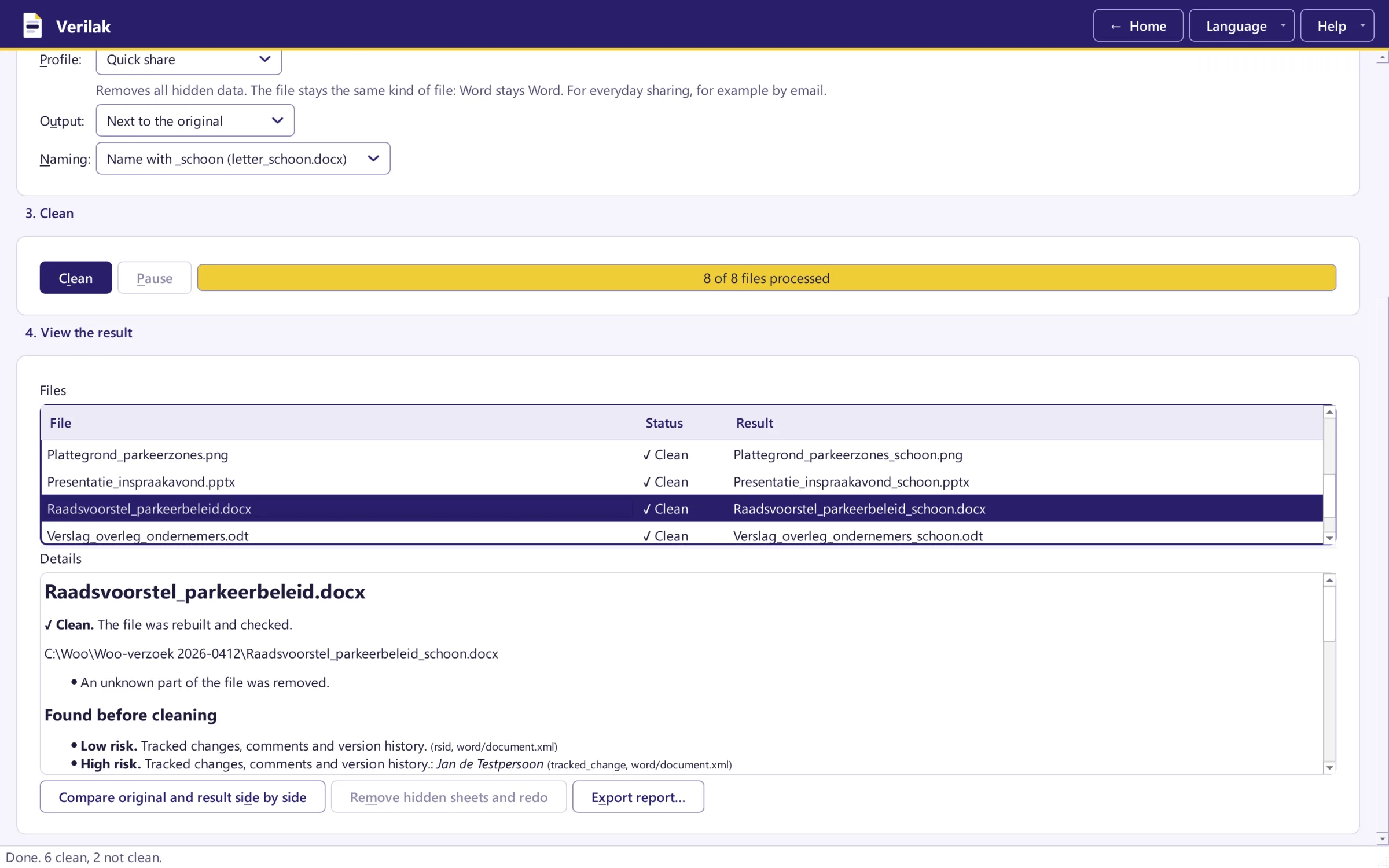
After cleaning, every file shows what Verilak found, such as tracked changes, comments or the author's name, with the risk. A second, independent check reads each new file again. Only when it finds nothing more is the file called clean. Otherwise it stays red, with the reason.
Redaction with proposals and a legal ground
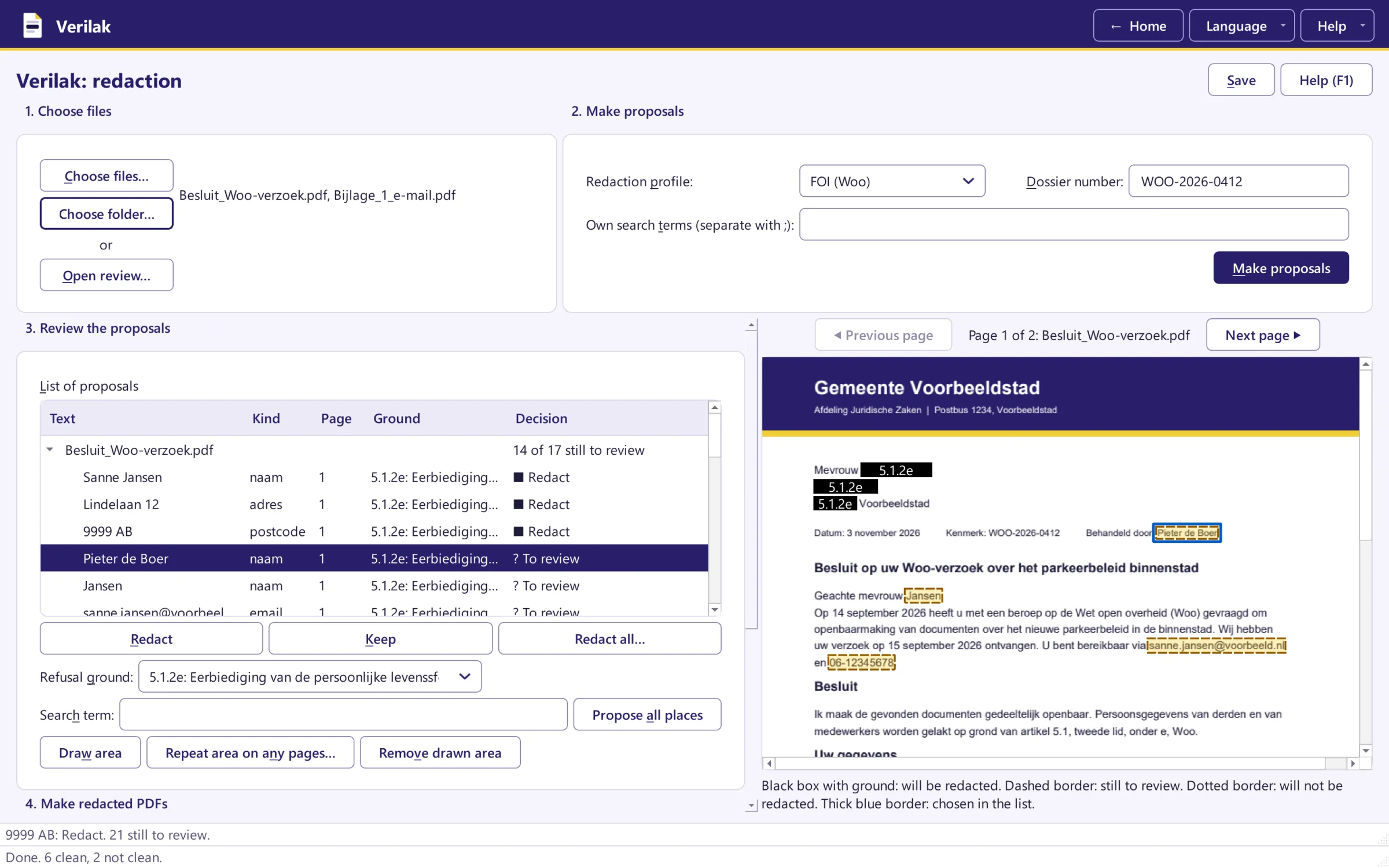
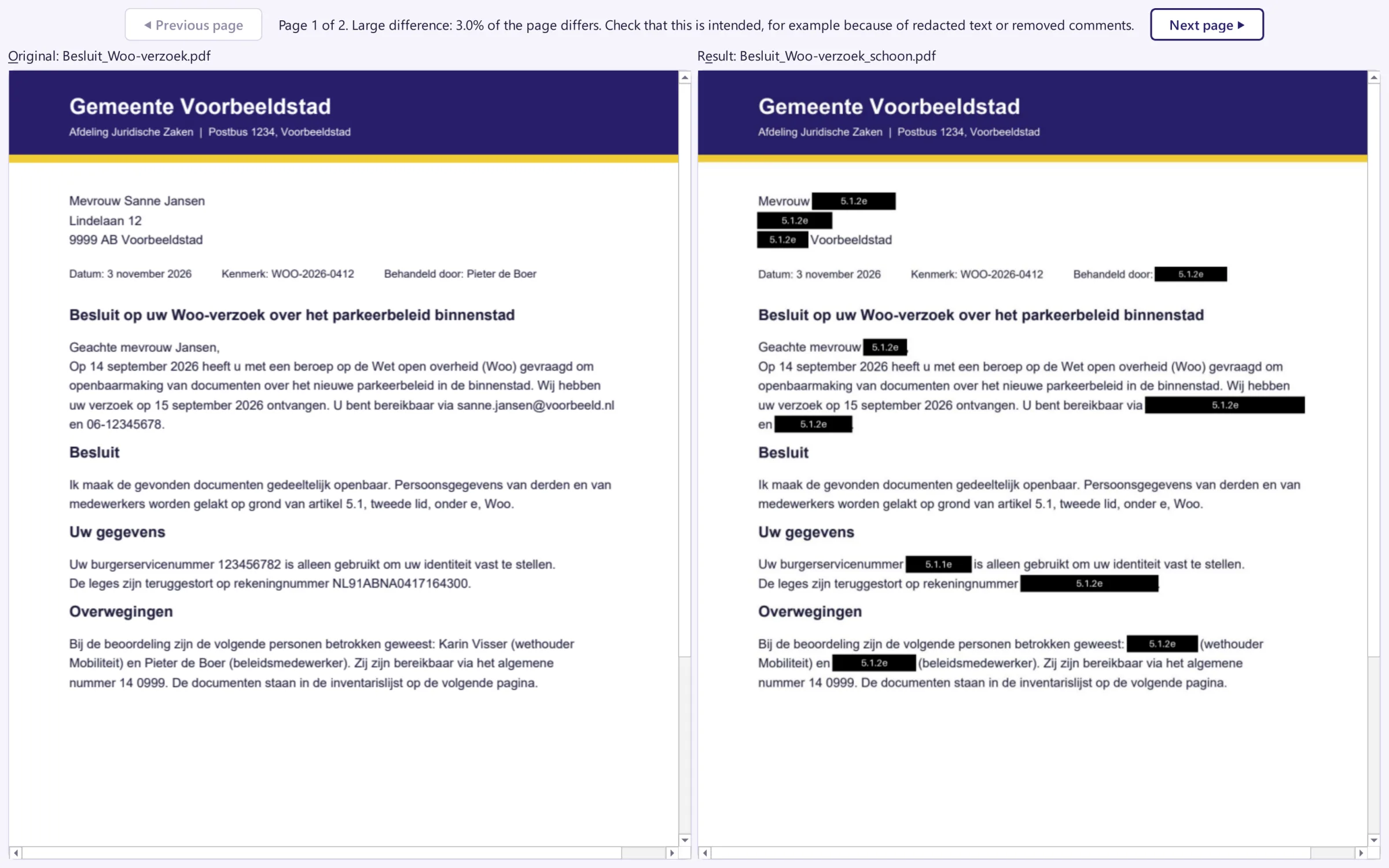
Verilak searches the case file for names, addresses, citizen service numbers, email addresses, phone numbers and bank accounts and makes a proposal for each find. You review every proposal on the page itself and, for a Woo decision, choose the legal ground that is printed on the redaction. More about redaction for the Woo.
Before and after side by side
Before you publish, Verilak puts the original and the result side by side. You see at a glance whether everything that must be redacted is redacted. Under the black boxes in the result there really is no text left. Why that is not a given.
Help at every step
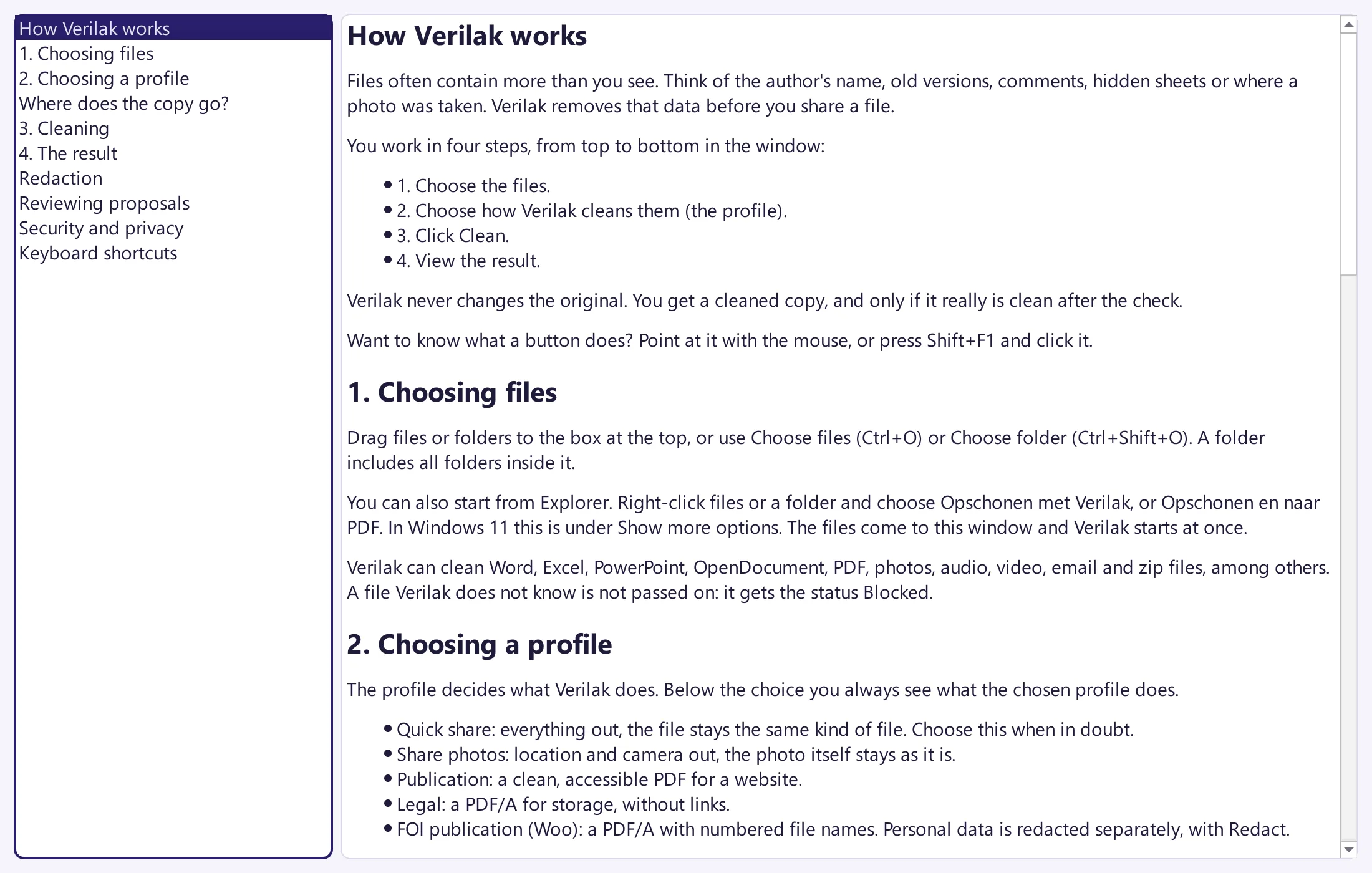
The built in help explains every step, in Dutch and English. Verilak meets WCAG 2.1 AA and is fully keyboard operable, also with a screen reader.
All names, addresses and numbers in these screenshots are made up. They come from a sample case file of the fictional municipality of Voorbeeldstad.
Try it with your own documents?
In a six week pilot you test Verilak on your own workstations, with your own files.